
Download the Excel mortgage offset calculator template and open it in Microsoft Excel for immediate scenario work. For quick, single-loan modelling, the spreadsheet is all you need. When you're ready to fold those results into superannuation projections and side-by-side retirement scenarios, Aerowealth handles the integrated planning.
TL;DR:
- The template calculates interest saved, total interest paid, payoff date, and a full amortisation schedule. Enter your loan amount, current interest rate, and offset balance schedule to start.
- Variable mortgage rates in Australia move with the Reserve Bank of Australia (RBA) cash rate, so any stress test should include at least one rate-shock scenario.
- The Australian Taxation Office (ATO) treats owner-occupied and investment loan interest differently. That distinction changes your after-tax cashflow and retirement projections, so the template flags which loan type applies to each row.
Pro Tip: Before entering a single number, save a clean copy of the template as your master file. Every scenario you run should live in its own copy, named with the date and key assumption (e.g., "Offset_$50k_RBA+1pct_June2026").
Table of Contents
- What's inside the Excel mortgage offset template?
- How to use the Excel calculator and the key formulas
- Worked Australian example: owner-occupied mortgage with offset
- Adapting the template for investment loans and ATO tax treatment
- Assumptions, limitations, and how to stress-test the model
- When does Excel stop being enough?
- Key Takeaways
- Why start with a spreadsheet
- Aerowealth takes your spreadsheet further
- Useful Australian sources and further reading
- FAQ
What's inside the Excel mortgage offset template?
The workbook contains five tabs: Inputs, Amortisation Schedule, Offset Ledger, Sensitivity Summary, and Scenario Export (a stripped-down summary row designed to paste into a retirement modeller like Aerowealth).
Required inputs:
- Loan amount (principal at settlement)
- Nominal annual interest rate (link this cell to your RBA cash rate assumption)
- Repayment frequency (monthly is standard for Australian lenders)
- Loan term in years
- Loan type: owner-occupied or investment
- Extra repayments schedule (amounts and dates)
- Offset balance schedule (opening balance, deposit dates, withdrawal dates)
Primary outputs:
- Interest saved versus a no-offset baseline
- Total interest paid over the loan life
- Payoff date (months and years saved)
- Month-by-month amortisation schedule
- Summary rows for export to a retirement modeller
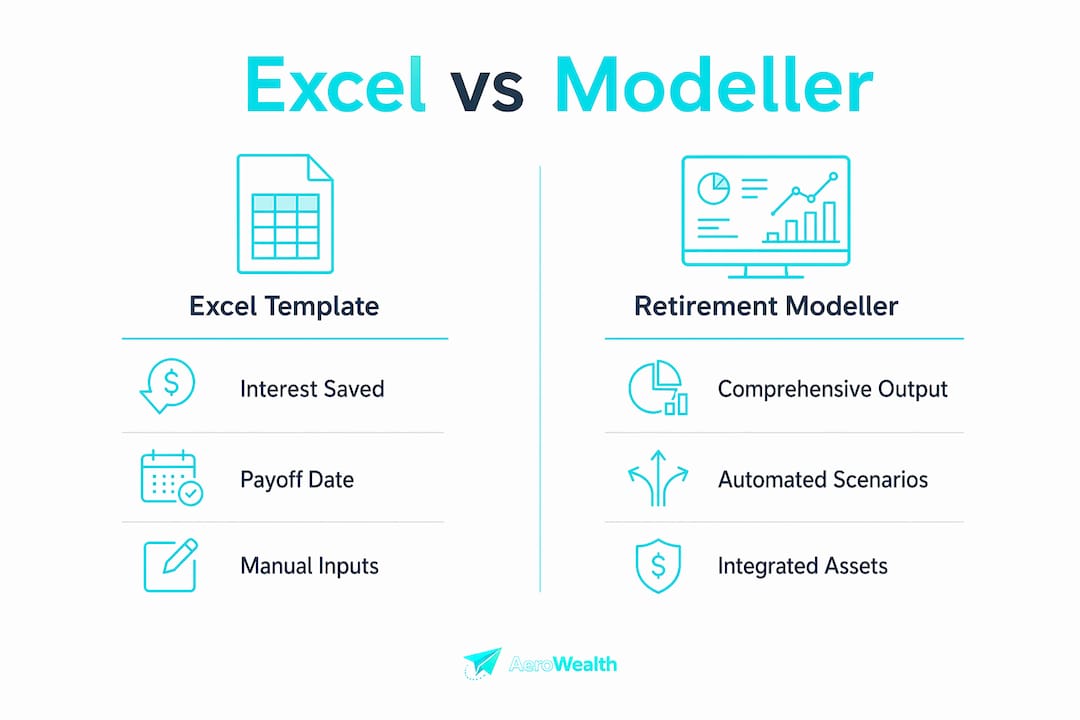
The table below shows how a standalone Excel template compares to a purpose-built retirement modeller across the dimensions that matter most for retirement planning.
| Dimension | Excel template | Retirement modeller (e.g., Aerowealth) |
|---|---|---|
| Outputs produced | Interest saved, payoff date, amortisation schedule | All of the above plus super projections, net worth, retirement age |
| Ease of use | Manual data entry; formula knowledge needed | Guided inputs; automated calculations |
| Retirement/super integration | None natively; export required | Built-in; mortgage feeds directly into retirement plan |
| Scenario side-by-side | One at a time via Scenario Manager | Multiple scenarios simultaneously |
| Accuracy (compounding) | Depends on correct formula setup | Validated assumptions baked in |
Mortgage offset calculator alternatives are worth reviewing if you want to compare other spreadsheet patterns before committing to one template structure.
How to use the Excel calculator and the key formulas
- Open the Inputs sheet. Enter loan start date, principal, nominal annual rate, repayment frequency, and loan term.
- Set the periodic rate. In a named cell (e.g.,
PeriodicRate), enter=NominalRate/12for monthly repayments. - Enter your offset schedule. In the Offset Ledger tab, list each deposit or withdrawal with its date and amount. A cumulative balance column uses
=SUMIFS(Amount, Date, "<="&LedgerDate)to track the running offset balance at any point. - Build the amortisation table. Each row represents one period. The key formulas:
| Formula purpose | Excel pattern |
|---|---|
| Monthly interest with offset | =(LoanBalance - OffsetBalance) * PeriodicRate |
| Principal portion | =ScheduledRepayment - InterestCharge |
| New running loan balance | =PreviousBalance - PrincipalPortion - ExtraRepayment |
| Offset balance (from ledger) | =XLOOKUP(PeriodDate, LedgerDate, CumulativeOffset, 0, 1) |
- Link the offset ledger to the amortisation table. Use
XLOOKUPorINDEX-MATCHto pull the cumulative offset balance for each period date. If your Excel version predates XLOOKUP, aSUMIFSon dates works just as well. - Add extra repayments. A separate column in the amortisation table holds extra repayment amounts. The running balance formula subtracts both the principal portion and any extra repayment for that period.
- Protect formula cells. Select formula columns, go to Format Cells > Protection, check "Locked," then protect the sheet with a password. Input cells stay unlocked so you can update assumptions freely.
Pro Tip: Use Excel's built-in version history (File > Info > Version History in Microsoft 365) or save copies to OneDrive with AutoSave on. A corrupted formula in row 47 of a 360-row amortisation table is genuinely hard to spot without a clean reference copy.
Worked Australian example: owner-occupied mortgage with offset
Assumptions: $600,000 loan, 6.40% nominal annual rate (consistent with recent RBA cash rate context), 30-year term, monthly repayments, two scenarios.
| Scenario | Offset balance | Monthly repayment | Total interest paid | Interest saved | Payoff date |
|---|---|---|---|---|---|
| No offset | $0 | — | — | — | 30 years |
| $50,000 offset | $50,000 (constant) | — | — | ~$102,411 | — |
A $50,000 offset balance on a $600,000 loan at 6.40% saves roughly $102,411 in interest and cuts about three years from the loan term, consistent with Canstar's worked example for a $500,000 loan at the same rate.
To stress-test this, use Excel's Data Table (Data > What-If Analysis > Data Table). Set offset balance as the row input and interest rate as the column input. You'll see instantly how a 1% rate rise or a drop in offset balance changes total interest paid, without rebuilding the model from scratch.
Adapting the template for investment loans and ATO tax treatment
Investment loans require a few structural changes to the template.
- Flag deductible interest rows. Add a column that multiplies the interest charge by a binary flag (1 = investment, 0 = owner-occupied). A
SUMIFon that column produces the annual deductible interest figure for your tax return. - Separate interest-only periods. If the loan has an interest-only phase, the principal portion formula returns zero for those rows. Set a flag column to switch between IO and P&I modes automatically based on the period date.
- Model after-tax cashflow. Subtract deductible interest multiplied by your marginal tax rate from the gross interest cost. This after-tax figure is what feeds into retirement cashflow projections.
The Centrelink angle matters more than most people expect. Offset balances are treated as assessable financial assets for Age Pension and Disability Support Pension eligibility, while redraw balances may be treated differently. Keeping large sums in an offset account can reduce fortnightly Age Pension payments depending on current asset-test thresholds. Model redraw separately in the template if you're comparing offset versus redraw strategies for retirement.
Pro Tip: Keep owner-occupied and investment loan tabs completely separate. Mixing them in one amortisation table makes it nearly impossible to produce clean tax-year summaries or export accurate figures to a retirement modeller.

Assumptions, limitations, and how to stress-test the model
The template assumes a constant offset balance, a static interest rate, and no lender fees unless you add them manually. Real offset accounts don't behave that way. Withdrawals happen, rates move with the RBA, and some lenders cap the offset balance that counts toward interest reduction or charge annual package fees that can run several hundred dollars per year.
Excel rounding is a minor but real issue across 360 monthly rows. Use ROUND(formula, 2) on each interest and principal cell to prevent cumulative rounding drift from producing a final balance that's off by a few dollars.
For stress testing: run a Data Table with rate inputs from current rate to current rate plus 2% in 0.25% steps. Then copy the entire workbook and simulate a worst-case offset withdrawal pattern (e.g., offset drops to $10,000 in year 5). Compare total interest paid across scenarios. After any structural change to the model, validate the final loan balance in the last amortisation row. It should reach zero (or very close) at the expected payoff date.
Back up the workbook to cloud storage and password-protect formula cells. One accidental overwrite in the amortisation table can silently corrupt every row below it.
Pro Tip: After stress testing, document your key assumptions in a dedicated "Notes" tab. When you later export summary rows to a retirement modeller, those notes tell you exactly what the numbers represent.
When does Excel stop being enough?
Excel handles a single loan well. It starts to strain when you need to model superannuation contributions alongside mortgage repayments, run CGT calculations on an investment property sale, or compare three retirement scenarios side by side without rebuilding the spreadsheet each time.
The decision is fairly clean:
- Use Excel for point-in-time cashflow visibility, single-loan scenarios, and quick "what if the offset drops?" checks.
- Use Aerowealth when you need multi-asset projections that include super, property, ETFs, and mortgage offset in one plan, with side-by-side scenario comparisons and stress tests that update automatically.
Exporting from the spreadsheet to Aerowealth is straightforward. Pull these fields from the Scenario Export tab: current loan balance, cumulative offset balance, annual interest paid (deductible and non-deductible separately), and remaining loan term. Those four figures are enough to re-create the mortgage component inside Aerowealth's retirement calculator and let the platform handle the superannuation and tax-aware projections on top.
Key Takeaways
A mortgage offset calculator in Excel is the fastest way to quantify interest savings and payoff dates, but it needs to connect to a retirement modeller to be genuinely useful for Australians planning retirement.
| Point | Details |
|---|---|
| Excel shows interest and time saved | The template calculates interest saved, total interest paid, and payoff date against a no-offset baseline. |
| ATO and Centrelink treatment matters | Owner-occupied interest is non-deductible; offset balances count as assessable assets for Age Pension eligibility. |
| Stress-test rates and withdrawals | Use Excel's Data Table to model RBA rate shocks and offset balance drops before finalizing your plan. |
| Export four fields to a retirement modeller | Loan balance, offset balance, annual interest paid, and remaining term are enough to re-create the mortgage in Aerowealth. |
| Aerowealth integrates the full picture | Aerowealth combines mortgage offset scenarios with super, property, and CGT modelling in one side-by-side plan. |
Why start with a spreadsheet
Spreadsheets are genuinely useful as a first step, and not just because they're familiar. A well-built Excel model forces you to articulate every assumption explicitly: the interest rate, the offset schedule, the compounding frequency. That discipline matters. When you later move those scenarios into an integrated tool, you know exactly what you're importing.
The pattern we see most often: people build a spreadsheet to answer one specific question ("how much does a $50,000 offset actually save me?"), get a clear answer, and then realize the next question ("but how does that interact with my super drawdown strategy?") can't be answered in the same file without rebuilding it from scratch. That's the natural handoff point.
Document your assumptions in a Notes tab before you export anything. A scenario labeled "Offset_$50k_6.4pct" means nothing six months later without the context of what rate environment and loan balance it assumed.
Aerowealth takes your spreadsheet further
Spreadsheets answer the mortgage question. Aerowealth answers the retirement question, with the mortgage already factored in.

Aerowealth integrates mortgage offset scenarios directly into retirement projections alongside superannuation, investment property, ETFs, and bridge-mode planning for early retirement before your super preservation age. Run side-by-side scenario comparisons, stress-test rate assumptions, and model CGT impacts on property sales, all in one plan. The platform reports planning success rates of up to 94%, and it's built specifically for Australians navigating the super system.
To get started, export your loan balance, offset balance, annual interest paid, and remaining term from the spreadsheet's Scenario Export tab, then re-create those inputs in Aerowealth. From there, the platform handles the rest. See your future wealth before you commit to a strategy.
Useful Australian sources and further reading
- Mortgage offset accounts — Moneysmart: the government's plain-language primer on how offset accounts work and an online calculator for quick repayment estimates.
- What is an offset account? — Canstar: worked savings examples including the $500,000 loan scenario used in this article.
- What is an offset account? — CommBank: practical notes on accessibility, lender terms, and the difference between offset and redraw.
- Offset vs. Redraw: Centrelink impact — About Retirement: explains how offset balances are assessed for Age Pension and DSP eligibility.
- Three ways to increase your Age Pension — Retirement Essentials: covers how assessable assets including offset balances affect fortnightly pension payments.
- Aerowealth retirement planning: how to project your retirement path with mortgage, super, and property in one model.
Always check your lender's specific offset terms, including any balance caps, partial offset conditions, and annual package fees, before relying on a model. For tax deductibility of investment loan interest or Centrelink consequences of offset versus redraw strategies, consult a licensed financial adviser or tax agent. This article is general information only and does not constitute financial or tax advice.
FAQ
What formulas do I need for a mortgage offset calculator in Excel?
The three core formulas are: interest charge = (LoanBalance - OffsetBalance) * PeriodicRate, principal portion = ScheduledRepayment - InterestCharge, and new balance = PreviousBalance - PrincipalPortion - ExtraRepayment. Link the offset balance to a separate ledger using XLOOKUP or SUMIFS to handle irregular deposits and withdrawals.
How does an offset account affect Age Pension eligibility in Australia?
Offset balances are generally treated as assessable financial assets for Age Pension and DSP purposes, which can reduce fortnightly payments depending on current asset-test thresholds. Redraw balances may be assessed differently, so modelling both options separately is worth doing before retirement.
When should I use Aerowealth instead of an Excel spreadsheet?
Use Excel for single-loan, point-in-time scenarios. Switch to Aerowealth when you need to combine mortgage offset modelling with superannuation projections, investment property CGT, and side-by-side retirement scenario comparisons in one integrated plan.
Is owner-occupied mortgage interest tax deductible in Australia?
No. The ATO does not allow a deduction for interest on an owner-occupied home loan. Interest on an investment property loan is generally deductible, which changes after-tax cashflow and should be modelled separately in the spreadsheet.
How do I stress-test my offset model for RBA rate changes?
Use Excel's Data Table (Data > What-If Analysis > Data Table) with interest rate as the column input and offset balance as the row input. This produces a grid of total interest paid outcomes across multiple rate and offset scenarios without rebuilding the model.